00 Days
:
00 Hours
:
00 Minutes
:
00 Seconds
Black Friday / Cyber Monday
30% OFF all plugins
Including renewals
Nov 27–30, 2026
The Import & Export section is designed for backing up your interactive map data and transferring configurations between different websites.
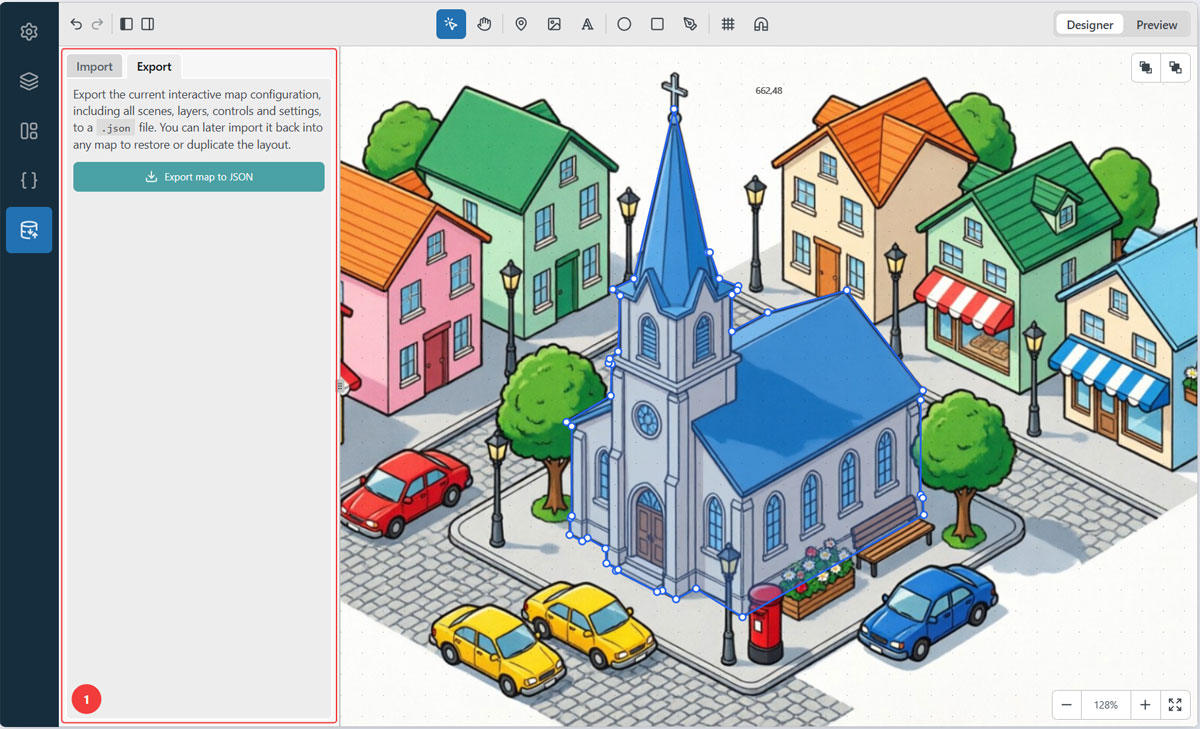
Allows you to save your map structure including scenes, layers, custom controls, and widgets into a single .json file.
Uploading a previously exported .json file completely overwrites the current map setup in the editor with the new configuration.
Important Migration Guidelines
JSON Data Only: The plugin exports only the map structural configurations. Media assets such as background map and canvas images, custom marker icons, or popup graphics are not included in the
.jsonfile.Media Asset Transfer: You must migrate all referenced media files to the destination site separately (e.g., via the native WordPress Media Library).
URL Correction: After importing the file onto the new site, you may need to update image file URLs inside the editor (or directly within the
.jsonfile prior to importing) if your domain or folder paths have changed.